


 SKU: HYPERD/RSTEXCTR
Blackmagic Design HyperDeck Extreme Control
Blackmagic Design HyperDeck Extreme Control
In stock
View full details WhatsApp us for inquiries


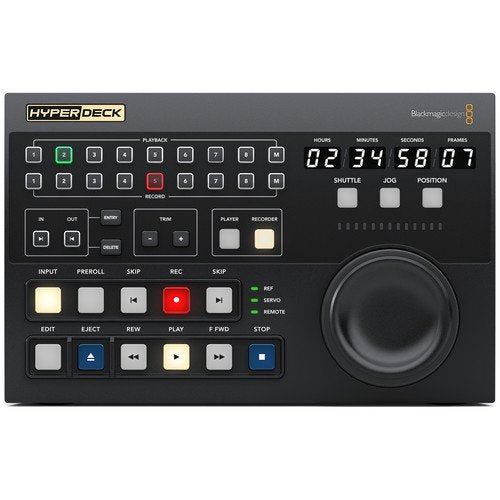
Blackmagic Design HyperDeck Extreme operation
The Blackmagic Design HyperDeck Extreme Control from is a 3 RU, half-rack width installation supplying traditional deck settings for virtually any type of deck thanks to RS-422 interfacing.
Eight RS-422 ports enable you to control up to eight decks, among them legacy decks and the HyperDeck Extreme 8K HDR.
modes include transport, timecode, and deck status keys plus a large search dial for jog, shuttle, and positioning control.
There is a row of eight recorder selection keys and another row of eight subject selection keys.
To protect videotape masters, capture requires depressing both the "REC" and "PLAY" keys simultaneously.
The HyperDeck Extreme Control additionally incorporates a built-in editor for automating the ingest of legacy videotape-based programming.
Two HyperDeck Extreme Control units, or one device plus one HyperDeck Extreme 8K HDR, can be installed in a rack or console through the optional HyperDeck Extreme Rack Kit.
Practical Notes: HyperDeck and Automate Editing between Tape
The built-in editor permits deck-to-deck editing. Working the same way as conventional decks, the HyperDeck Extreme Control can control legacy decks and the HyperDeck Extreme 8K HDR from the identical front panel.
To edit old videotape simply push the "Subject" control, enter in and out points on the tape, choose the recorder, and push "EDIT".
The HyperDeck Extreme Control will currently cue and play the broadcast deck whereas capture on the HyperDeck.
For more information click here.
Elegant Transport operation and Traditional
You get familiar transport settings such as "PLAY" which, whenever pressed during a capture, will cause the capture to stop and the deck to continue to play from the identical point.
To start a capture, push both the "REC" and "PLAY" keys simultaneously.
Practical Notes: Shuttle and Premium Search Dial for Jog
Its premium search dial combines jog and shuttle operation; an electronic clutch halts rotation at each shuttle limit yet leaves the control free-spinning in jog mode.
HyperDeck Extreme Control replaces varispeed with a position function that enables rapid movement up and down the capture.
The search dial uses twin bearings so you can free spin it for fast jog.
Practical Notes: Deck Status and Full Timecode Display
Full deck status is provided on a large timecode screen.
This screen indicates the timecode of the current chosen deck, and the timecode source selector will control what's displayed on the time counter.
The horizontal light bar indicator enables the operator to see the position of the search dial and deliver a image feedback, which is important whenever working with off-site decks.
The servo indicator light will show whenever the deck is in play or capture setting and the servo arrangement is correctly locked.
Since remote decks will still screen the time counter and transport state, the off-site indicator will let you know if the deck is in off-site.
There's even outboard footage reference status.
Out Point Entry for Editing and adaptable In
For editing, you requirement to enter an in and out position for the remote deck. Simply choose the "IN" or "OUT" control and the "ENTRY" control simultaneously to enter the points.
To screen each edit position on the time counter screen, simply push the "IN" or "OUT" control only and the time the position will be shown.
Whereas the entry control is employed for entering the in or out position data, you can additionally detailed the in and out points by depressing the "IN" or "OUT" control while depressing "DELETE".
To trim edit points, you can push the "TRIM" + or - control while depressing the "IN" or "OUT" control, and you will advance or delay the edit position by one shot at every press.
Pre-Roll Edits to Cue Decks: Guide
A pre-roll control is provided for cueing decks.
Whenever this control is pressed, the tape machine will run to the pre-roll position, which is generally five seconds before the in position.
If you are through an older broadcast deck, it could make a few minutes for the deck to get to the cue position as the machine has to spool the tape.
If the "PREROLL" control is pressed simultaneously with the "IN" or "OUT" control, then the deck will cue to the specific in or out position.
Perform the Edit Automatically: Guide
Once you deliver your in and out points location, you can carry out the edit automatically by depressing the "EDIT" control.
If this control is pressed before setting the in position, the current tape position will be without manual intervention entered as the in position, and then the editing will be performed.
This means you can choose the "EDIT" control and it will location the in position and then carry out the edit all in one step.
You can additionally click here.
[caption id="" match="alignnone" width="1000"]
 Blackmagic Configuration HyperDeck Extreme Control [/caption]
Key Features
- Standard Deck Controls for up to 8 Decks
- 8 x RS-422 Ports
- Supports Legacy Decks and HyperDeck 8K
- 3 RU, Half-Rack Width Installation
- Built-In Editor for Deck-to-Deck Editing
- Flexible In and Out Point Entry
- Pre-Roll Edits to Cue Decks
- Full Timecode Display and Deck Status
- Search Dial for Jog/Shuttle/Positioning
- 8 Recorder/8 Player Selection Buttons
Shop by Categories


Explore other brands


