


 WhatsApp us for inquiries

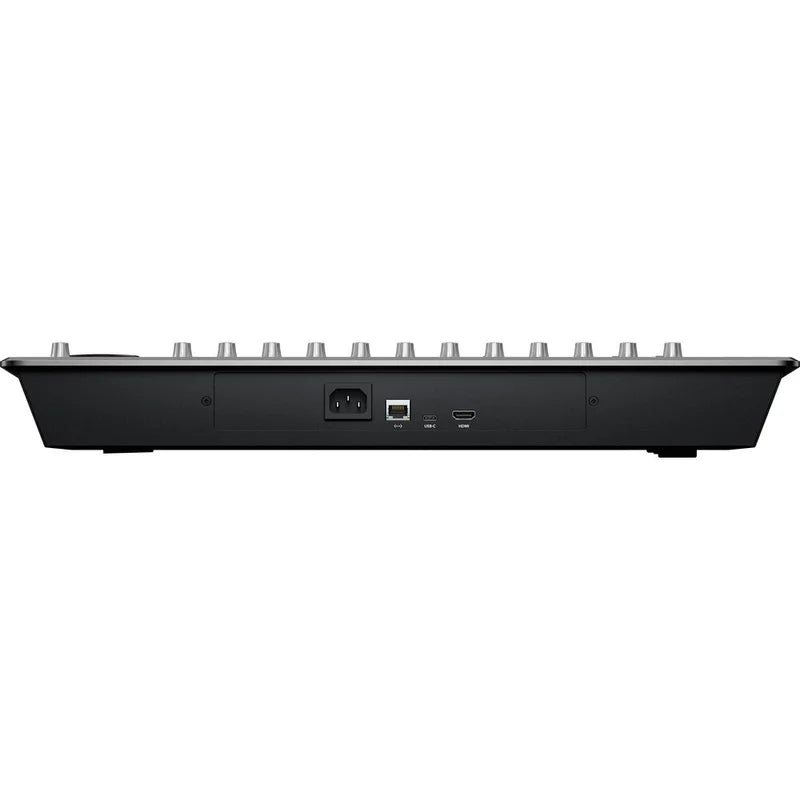
With its space-efficient form and pro-level incorporates, the Blackmagic Design Fairlight Desktop Console provides independent mixers and small postproduction studios a space-saving, purpose-built USB control surface for maximizing process efficiency with DaVinci Resolve's Fairlight page.
The Fairlight Desktop Console delivers 12 powerful channel strips, each with a touch-sensitive, motorized 100mm fader, an assignable multifunction pan knob (additionally touch-sensitive), a high-resolution color LCD screen, solo and mute buttons, and a multifunction choose button. Use them as traditional per-channel console controls or switch to Focus setting to utilize the knobs and choose buttons of all channels to refine the parameters or plug-ins of a single track.
A precision search dial joins logically arranged navigation and transport controls, making project movement fast and comfortable during capture automation or zooming in on a specific location. The Fairlight Desktop Console additionally functions as an adaptable monitoring surface whose purpose-built keys select sources, dim or mute speakers, alternate speaker and headphone listening, and operate talkback.
The Fairlight Desktop Console connects to your computer via a USB Type-C link (cable included) and boasts a HDMI feed for visually observation all console activity.
Professional and Compact
The Fairlight Desktop Console uses the same high-quality faders as the full-size modular consoles. The sculpted faders are smooth and deliver the perfect amount of resistance for making subtle adjustments. The precision-engineered encoder knobs maintain quiet operation over a long service life. Console keys carry a one-million-press rating, while separate LCDs show every channel's track information. The high-quality search dial is extremely responsive and is much faster than a mouse. Long sessions are cushioned by a soft front bumper. Flush custom-desk installation is supported, and the integrated supply eliminates an external power brick. A USB Type-C port delivers easy interfacing with your computer system.
Channel Strips: Guide
The Fairlight Desktop Console contains 12 channel strips that can be used in a variety of ways for mixing audio. Level adjustment on every channel strip uses a motorized fader, accompanied by solo, mute, and parameter keys, a multifunction panning encoder, plus a LCD that shows you information about the channel or track on which you are working.
Any strip may be assigned to any project track, with each channel strip capable of operating one track independently. You can additionally use a single strip to control several tracks in a group, or you can use the channel strips to control buses. This gives you the speed and flexibility you need for total control over your capture and mixing sessions.
Channel Status Displays: Guide
There are independent high-resolution LCD screens located above each of the 12 fader strips. These displays incorporate track name, number, and color, along with panning status, channel level meters, automation state, bus routing, and more.
Multifunction Pan Knob: Guide
The multifunction pan knob can be used for panning or can be assigned to control other Fairlight parameters. Hold Control and tap to reset, or hold Shift for refined control. As it's a rotary encoder, it won't introduce signal noise like worn mechanical knobs.
Channel-Strip operation
All 12 fader strips provide individual mute and solo keys, enabling rapid track isolation or temporary deactivation. Multifunction choose buttons can be used to load track parameters and activate automation and plug-in controls.
Motorized Faders: Guide
12 belt-driven 100mm motorized faders supply precision volume control for adjusting levels. The bank control buttons let you switch between fader sets to control distinct channels. Faders can even be assigned to refine send and capture levels.
Transport Controls and Navigation
Large multitrack projects under tight deadlines leave little time for repeated timeline scrolling via the timeline or hunting for a clip. The Fairlight Desktop Console helps you work faster since it incorporates transport keys plus a precision jog/shuttle wheel. These controls rapidly navigate the timeline, move among clips, scrub, start or stop playback, and jump to selected positions. Logical control grouping keeps one hand in place while the operator reaches any timeline position within seconds. The search dial can additionally be used for timeline zooming, clip levels, and more.
Task-Based operation
Control function selector buttons let you assign the buttons and knobs on the panel for distinct purposes. You can quickly choose between master and channel controls, panning, plug-in control, EQ, dynamics, and more. By default, the console works in strip setting, giving you one channel strip per track. Focus setting lets you assign all of the choose buttons and knobs on the console to work on the parameters or plug-ins for a single track. That means you can refine the EQ, dynamics, or any other plug-in parameter for a track through all of the choose buttons and knobs on the console. For example, you can refine several frequency ranges in the EQ at the same time, which is impossible to do with a mouse.
recording production flow Automation
Fairlight's powerful automation lets you capture parameter changes you make over time. For example, you can capture level changes as you move the faders on the console. Fader adjustments are saved and can be edited later. Fairlight lets you automate anything from simple level changes to complex plug-in, EQ, and dynamics changes. Live adjustments can therefore be created and stored from the console. Touch sensitivity activates a fader or knob as soon as it is contacted, allowing the console to identify the intended parameter before the control is moved. Six automation buttons permit and disable automation, set capture method, and set which automation curves appear in the timeline tracks.
Monitoring operation
The Fairlight page has incredibly adaptable observation, so you can preview your sound from a variety of distinct speaker sets. Monitoring can move among headphones, nearfield speakers, primary stereo monitors, and complete immersive 3D surround arrays.The observation From the Fairlight Desktop Console, operators can rapidly change sources, adjust booth and studio levels, and manage talkback when the computer has a Fairlight Audio Interface. You additionally get a level knob along with buttons for dimming and muting your speakers, allowing you to instantly cut or lower the sound, so you can have a conversation in your studio or suite.
External HDMI Monitoring: Guide
For direct visual feedback, you can add a HDMI display to the Fairlight Desktop Console. The arrangement permits you to see an extensive graphical display of everything happening on the console. You'll be able to see channel strip information, levels, equalization, dynamics processing, plug-in interfaces, and more. That means you don't have to open pop-up windows on top of your timeline.For example, whenever you refine EQ settings, its interface will be displayed on the screen as you turn the knob. The screen automatically switches to show you buses, in-line channel-strip controls, or single-channel controls whenever in focus mode. There's no configuration needed, simply plug in a HDMI monitor and start working.


