


 SKU: DV/RES/BBPNLMLEKA
Blackmagic Design DaVinci Resolve Speed Editor with Studio Software
Blackmagic Design DaVinci Resolve Speed Editor with Studio Software
In stock
View full details WhatsApp us for inquiries

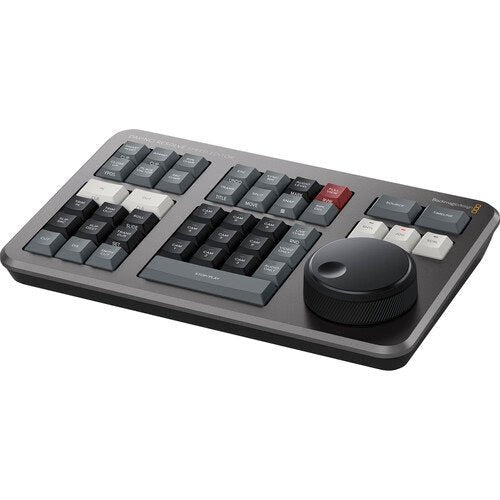
Blackmagic Design DaVinci Resolve Speed Editor: Studio Software — Product Guide
The Blackmagic Design DaVinci Resolve Responsiveness Editor by is a strong complement for the editor on the go.
It connections with macOS or Windows editing systems running DaVinci Resolve, delivering you with keyboard shortcuts and controls that accelerate the editing workflow, compared to through a mouse to navigate your edit setup.
The Responsiveness Editor is small enough to make with you on on-location, and its built-in battery enables you to use it through Bluetooth for a wire-free link.
The Responsiveness Editor is charged by and can connect to your computer through an optional USB Type-C lead.
The Speed Editor integrates dedicated push keys that control the edit settings, timeline navigation, and effects of DaVinci Resolve.
Additionally, these push keys deliver shortcuts to useful provides provided only on the Responsiveness Editor.
The built-in Search Dial is similar to the jog wheel often identified on professional edit decks, but in conjunction with the push-button keys and DaVinci Resolve software, the search dial is much more capable.
You can additionally click here for more.
Transport operation and Search Dial
Constructed into the Responsiveness Editor is a Search Dial reminiscent of the jog wheel that editors deliver used for decades to shuttle via footage.
Combined with push-button transport settings, the Search Dial permits you to jog via your footage and trim in and out points.
The Search Dial is machined from metal and has a weighted feel for slowly jogging via your footage or shuttling via by spinning the dial.
Keyboard Shortcuts: Guide
Although the Responsiveness Editor's panel is small and lacks a Qwerty keyboard, it is loaded with purpose-built push buttons for quickly accessing integrates and navigating your timeline.
Dedicated Transition Buttons: Guide
Choose from Cut, Dissolve, and Level Cut for transitions between clips.
Edit Modes: Guide
Supplies keyboard shortcuts that replace dragging clips from the trim windows to the timeline or switching to distinct settings in the Resolve to make edits through the mouse:
Smart Insert:: Guide
Resolve will locate the nearest edit in the timeline and insert the mount in that location.
Append to End:: Guide
Adds the mount to the end of your timeline edit with the in and out points you've chosen.
Close-Up:: Guide
automatically creates a slightly zoomed-in version of the chosen attempt and places it on the top of the timeline.
Ripple Overwrite: Guide
Place on Top: Guide
Source Overwrite
Function Buttons: Guide
The Responsiveness Editor comes with a multitude of functions keys, some of which are distinct to the Responsiveness Editor:
Practical Notes: Undo and Escape
Sync Bin: Guide
Markers and sound Level
Full-Screen Viewer: Guide
Add Transition: Guide
Practical Notes: Move and Split
Practical Notes: Viewer Size: and Snap
Turns on snapping in the timeline, enabling the play assembly to pause momentarily at every edit point as you scroll via your edit with the search dial.
Holding the Snap control down will let you refine the viewer size with the search dial.
USB operation and Bluetooth
The Responsiveness Editor handles controlling DaVinci Resolve either hardwired with an optional USB lead or through Bluetooth.
The Speed Editor's built-in battery enables you to operate wirelessly, and it charges through an optional USB lead.
For more information click here.
[caption id="" match="alignnone" width="1000"]
 Blackmagic DaVinci Resolve Responsiveness Editor [/caption]
Key Features
- Small and Portable with Built-In Battery
- Keyboard Shortcuts Match Edit Functions
- Built-In Search Dial
- Bluetooth or USB Connectivity
Shop by Categories


Explore other brands


