


 SKU: DV/RES/AAAPNLMIC/EN
Blackmagic Design DaVinci Resolve Micro Color Panel
Blackmagic Design DaVinci Resolve Micro Color Panel
In stock
View full details WhatsApp us for inquiries


Blackmagic Design DaVinci Resolve Micro Color Panel — Product Guide
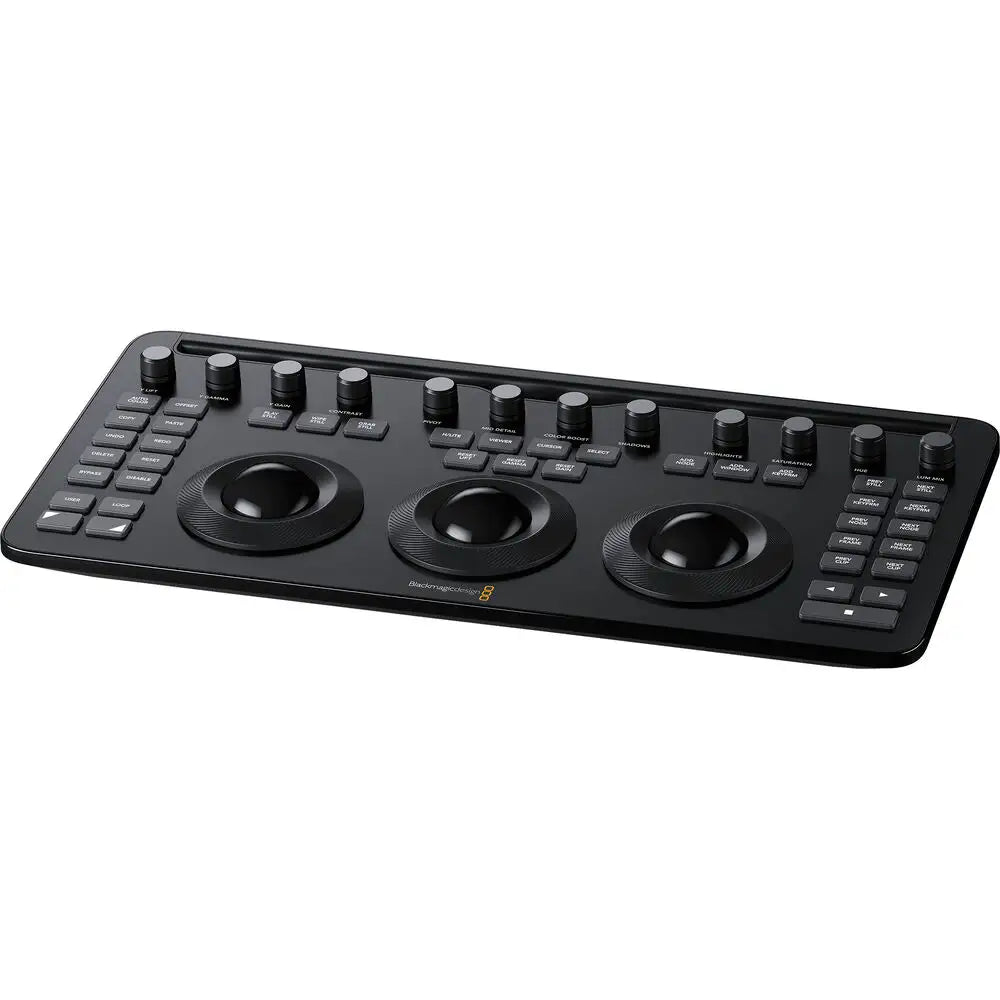
For this model, Designed for use with Apple iPad Pro, Blackmagic's DaVinci Resolve Micro Color Panel Configuration produces professional-grade color control with an intuitive interface tailored for beginners. Enhancing the color accuracy and process speed of DaVinci Resolve Studio software, this panel contains three high-resolution trackballs, 12 control knobs, and numerous buttons that give direct access to contrast plus Y lift, gamma, and gain.
With controls strategically positioned akin to enhanced versions, operators can reshape, resize, position, and feather power windows while also scaling the picture. Its compact chassis holds an iPad Pro as the software screen and offers interfacing options including Bluetooth or USB-C to your iPad or personal computer. Working on onboard battery or USB-C power, it provides versatility and convenience for seamless color grading experiences.
Precise Controlled Track Balls of DaVinci Resolve Micro Color Panel and Professional
The trackballs permit color adjustment inside a picture based on lift, gamma, and gain tonal ranges. Unlike working with a mouse and keyboard, you can manipulate several trackballs concurrently to produce distinctive effects. Smooth rings surrounding the trackballs set master levels and shape overall contrast. Keys positioned above each trackball allow you to reset color or level adjustments individually, or both simultaneously. Three more controls across the upper edge of the DaVinci Resolve Mini and Micro Color Panels permit switching between primary and log wheel settings, activating offset, temperature, and tint controls, and toggling the full-screen viewer feed. A fourth master-gain trackball on the DaVinci Resolve Enhanced Panel adjusts the picture globally.
Primary Adjustment Controls on DaVinci Resolve Micro Color Panel
Primary controls shape overall picture luminance and color balance via a range of tools that target specific tonal and hue variations. Frequently used image adjustments are placed together for fast creation of vivid results, which suits photographers, designers, and colorists working against deadlines. Twelve primary-correction dials on the DaVinci Resolve Micro and Mini panels provide rapid control of picture temperature, tint, hue, saturation, contrast, shadows, highlights, color boost, midtone detail, and other parameters. Pressing any dial resets that parameter immediately, making alternative looks easy to test!

Luminance operation in DaVinci Resolve Micro Color Panel
- Y Lift control: Adjust the contrast of the image in the darker areas, specifically in the Y (luminance) channel only. This adjustment allows changing the black point without changing saturation.
- Y Gamma control: Adjust the contrast of the image in the mid-tone areas, specifically in the Y (luminance) channel only. This control helps add depth and extra vibrancy to shots.
- Y Gain control: Adjust the contrast of the image in the highlight areas, specifically in the Y (luminance) channel only. This adjustment allows you to change the highlights without changing saturation.
Contrast operation in DaVinci Resolve Micro Color Panel
- Contrast Control: Increase contrast to make the blacks darker and the whites brighter, or decrease contrast to do the opposite.
- Pivot: Change the center of tonality about which dark and bright parts of the image are stretched or narrowed during a contrast adjustment.
- Mid-Tone Detail: Affect the contrast of regions of the image with high edge detail to increase or decrease the perception of image sharpness and definition. Often used for softening facial features, making it popular for beauty shots.
Detail operation in DaVinci Resolve Micro Color Panel
- Color Boost Control: Raise the saturation in regions of the image with low saturation while leaving properly saturated areas alone. Also known as a vibrance operation, this is useful for adding color without oversaturating the image.
- Shadow Control: Selectively lighten or darken shadow detail without affecting your image's mid-tones.
- Highlight Control: Enable retrieving blown-out highlight detail in high dynamic range media by lowering this parameter. This allows you to achieve a smooth blend between the retrieved highlights and unadjusted mid-tones for a natural-looking image.
Saturation operation in DaVinci Resolve Micro Color Panel
- Increases or decreases overall image saturation. You can turn your color image into a grayscale image with this control.
- Hue Control: Rotate all hues of the image around 360° of the color wheel. The default setting is 50, which retains the original distribution of hues.
- Luminance Mix Control: Control the balance between the YRGB adjustments and Y-only adjustments made using the Y channel lift, gamma, and gain controls.
Key Features
- For DaVinci Resolve Software
- 3 High-Resolution Trackballs
- Precision Machined Control Knobs
- Navigation and Transport Keys
- Connects via Bluetooth or USB-C
- Mounting Slot for iPad Pro
- Internal Battery
Shop by Categories


Explore other brands


