


 SKU: DV/RES/BBPNLMLEKB
Blackmagic Design DaVinci Resolve Editor Keyboard
Blackmagic Design DaVinci Resolve Editor Keyboard
In stock
View full details WhatsApp us for inquiries

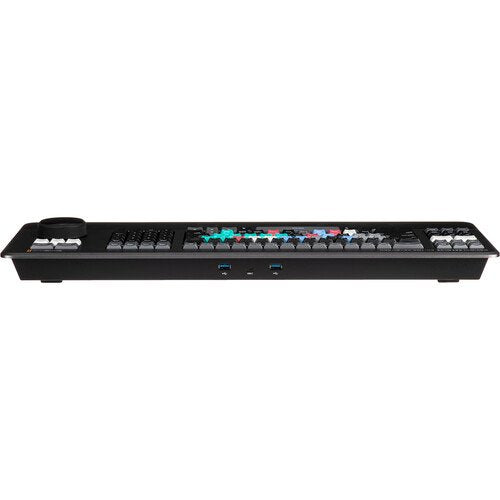
Blackmagic Design DaVinci Resolve Editor Keyboard — Product Guide
Made for DaVinci Resolve 16 and above, the Blackmagic Design DaVinci Resolve Editor Keyboard from provides an all-metal build and has professional edit keys and a high-quality search wheel, enabling you to edit with both hands.
For example, you can control the position inside a mount with the right hand whereas setting in and out points and applying edits with the left. Professional editor feedback shaped tactile details on the Resolve Editor Keyboard, including extra space above selected keys so fingers can identify them without looking.
It connects into a USB Type-C port and works eliminating any battery packs. The keyboard can be employed on a desktop or inset into a console through a flange. DaVinci Resolve software is supplied.
You can additionally click here.
Editor Keyboard Controls and Workflow Highlights
Metal Design: Premium Keys
The all-metal configuration incorporates keys with a tiered profile, instead of flat keys, so it's simple to feel your preference around. The principal switches are the same type employed by eSports keyboards and every principal is certified for over a million operations. The built-in search dial is machined from solid metal and supports very accurate transport and trimming control. There's additionally a handrest with a soft feel to help lower fatigue. Plus, replacement keycaps, the palm rest, and primary switches remain available, supporting long-term servicing and refurbishment of the keyboard.
Integrated Search Dial operation
The metal search dial contains rubber coating and is developed with several roller bearings that enable for smooth operation. There's a built-in electronic clutch that creates end stops whenever used for shuttle and position. The dial can additionally be spun in jog setting to enable a lifelike timeline scroll. The jog control enables free movement for accurate positioning of the playback position. Shuttle uses the clutch, and you can rotate ahead and reverse wind to move up and down the timeline. Scroll enables scrolling up and down a long edit to navigate quickly.
Fast Source Tape Allows Scrolling Clips: Guide
Activating the new source control assembles every bin clip into a single virtual Source Tape. Currently you can simply scroll up and down all your media eliminating the requirement to navigate thousands of clips. The mount being viewed is additionally highlighted in the bin in real time. Switching between the source tape and timeline is immediate.
Practical Notes: Source Tape and Instantly Re-Sort Bin
Source Tape follows the selected bin sorting method, giving editors flexible control of clip organization. This supplies you the latitude to find pictures by time, unit, duration, or even mount name. The moment one of the bin sort keys is chosen, the source tape will be regenerated in that bin's sort order. Simply scroll up and down the source tape to find the pictures needed. Timecode sorting arranges every clip chronologically, a useful view for live-production material captured in sequence. You can additionally sort by body, ideal for multicamera sessions where you lay down the wide attempt first and then look for cutaways on other cameras. You can even sort by duration and the mount name.
Practical Notes: Out Points and Fast In
The in and out position buttons are developed large, and a small empty room is provided above them to enable locating them by feel. This layout supports right-hand transport operation while the left hand marks in and out points. When you choose in and out points in the DaVinci Resolve cut page, you additionally trim clips. After the in and out points are location, just range your fingers up to the edit keys. The in and out points can additionally be employed to contract the source tape to limit the clips supplied. Then you can change the source tape rear to the whole bin by depressing the Escape principal.
Intelligent Keyboard Edit Modes: Guide
The editing functions are located only above the in and out keys, to enable a simple movement of your fingers to activate the edit you need. Since editing with a keyboard is quite distinct to editing on a computer's operator interface, the editing functions deliver been optimized to make advantage of the responsiveness of a keyboard. Most edits can be performed on the source mount without needing to position edit points on the timeline itself, removing time wasted switching between source and timeline. The edit points can without manual intervention locate the nearest timeline edit or even match timecode. Smart Insert illustrates this behavior by finding the closest edit point and placing the material there.
Smart Insert: Guide — Blackmagic Design DaVinci — Product Guide
Smart Insert is similar to the conventional insert edit function; however, it's smarter as it eliminates the requirement to selector to the timeline and position an in position. Select Smart Insert and the command finds the timeline's closest edit point before placing the clip at that position.
Append to End: Guide — Blackmagic Design DaVinci — Product Guide
Append to End is valuable for building edits fast. Simply choose an in and out position and then Append to End will attach the mount to the end of the edit and increase the timeline duration. Append to End is great whenever adding pictures to an edit from material that's been attempt in time order.
Ripple Overwrite: Guide — Blackmagic Design DaVinci — Product Guide
Ripple Overwrite is a widely chosen edit function and it lets you replace pictures extremely quickly. Whenever applied, it will replace the mount in the timeline with the chosen clip, and if the mount is a distinct length, it will refine the room to handle the new mount and ripple the timeline duration.
Close Up: Guide — Blackmagic Design DaVinci — Product Guide
Short Up is best for creating two unit angles from one camera. Simply shoot your person or object with a wide or mid attempt, and then whenever a close-up is applied, it will produce a slightly zoomed-in version of the identical camera attempt and position it on top of the timeline. Plus, you can additionally apply it to a mount in the timeline.
Place on Top: Guide — Blackmagic Design DaVinci — Product Guide
Position on Top is similar to conventional edit functions and it will position the mount on the top of the backdrop dimension that's already in the timeline. If the timeline doesn't deliver a dimension above the backdrop layer, Position on Top will attach a new timeline track and then position the mount on top.
Source Overwrite: Guide
Source Overwrite is a faster option to multicam. It without manual intervention matches source timecode to the source timecode of the mount in the timeline and places the mount on top. If you shoot with several cameras and sync timecode, you can lay other body angles on a base wide attempt dimension.
Search Dial Live Trimming: Guide
With a high-quality search dial constructed in, you get an accurate and fast preference to trim edit points. The roll keys enable the keyboard to make control of the search dial and very accurately refine edit trimming. You can choose the trim setting with your left hand whereas refining the trim with your right. Through roll trimming is simple and is operated by depressing and holding one of the roll keys, depending on the type of trim you requirement to do, whereas then rotating the search dial. a dedicated Trim Editor key on the numeric pad opens trim mode directly, allowing rapid navigation among timeline edit points for quick multi-edit adjustments.
Roll In: Guide
Roll In is very similar to refining trim in on the software; however, it's a modifier principal on the keyboard. Through roll in on a transition adjusts the in position of the destination mount, while refining roll in on a mount adjusts its in position. All adjustments will ripple the timeline duration.
Roll Out: Guide
Roll Out is very similar to refining trim out on the software but it's a modifier principal on the keyboard. Through Roll Out on a transition adjusts the out position of the source mount, while refining roll out on a mount adjusts its out position. All adjustments will ripple the timeline duration.
Roll Transition: Guide
Roll Transition is similar to the roll edit. It rolls the transition joining two clips, simultaneously adjusting the destination clip's in point and the source clip's out point. Roll edit does not affect timeline duration.
Roll Source: Guide
Roll Source is the identical as slipping the source mount and it will move the attempt up and down inside the current clip's in and out points. Roll source enables slipping the clip inside the identical duration so it won't affect the total timeline duration.
Roll Destination: Guide
Roll Destination is the identical as slipping the destination mount and it will move the attempt up and down inside the current clip's in and out points. Roll destination enables slipping the clip inside the identical duration so it won't affect the total timeline duration.
Roll Duration: Guide
Roll Duration adjusts how long an effect at the selected edit point remains on screen. Whenever chosen, refining the search dial will interactively refine the duration of the transition. After selecting a transition style, Roll Duration provides the control needed to refine its timing.
Practical Notes: Change Transitions Instantly and Select
Editing software is slow at attaching transitions since it requires through drag and drop to position a transition, or a keyboard shortcut for only one transition type. With DaVinci Resolve Editor Keyboard you can push a principal and attach or remove a transition with a one button push. The Cut principal will remove any transition on an edit position and leave it as a simple edit between the two clips. Depressing Dissolve will add an one second dissolve between the two clips, and through Roll Duration will location the desired transition length. If the edit already contains a dissolve, pressing the key has no effect. There's additionally a smooth cut button to enable jump cuts to be removed at the push of a control.
Improved QWERTY Key Layout: Guide
The DaVinci Resolve Editor Keyboard contains a revised QWERTY principal layout based on feedback from professional editors. The new contains in the revised layout incorporate a viewer button to enable instant switching to full display see. However, you still get all the conventional editing integrates for both the cut and edit pages in DaVinci Resolve, so the central functions QWERTY part of the keyboard still operates in a familiar preference.
Direct Timecode Entry Keypad: Guide
Whenever entering edit points and durations numerically, there's a keypad specifically developed for timecode entry. The F/TC control enables switching between timecode or frames. Only press the F/TC control and the entry changes to frames. Whenever typing longer timecode values, there's additionally a double zero control so you don't deliver to push the standard zero principal as often. The plus and minus keys enable time values as offsets to current values rather than absolute entries. A purpose-built duration entry button enables you to numerically define the duration of a mount. Numeric duration entry is one of the most employed functions. For example, if you requirement to location a 100-shot duration on a mount, just push DUR, F/TC, and 100.
Designed for the Desktop or Inset into a Console: Guide
Although the DaVinci Resolve Editor Keyboard has been developed with a modern aesthetic, there's additionally function to the shape. Where the upper keyboard surface meets the lower chassis, a fine pinstripe-like seam complements the modern form. There are additionally fold-out rear feet to increase the keyboard tilt. The flange also permits recessed installation within a console or desktop cutout. The keyboard will then sit almost perfectly flat on the desk surface.
DaVinci Resolve Software License: Guide
A copy of DaVinci Resolve software is supplied with the keyboard.
For more information click here.
[caption id="" match="alignnone" width="1000"]
 Blackmagic Configuration DaVinci Resolve Editor Keyboard with Resolve Software [/caption]
Key Features
- All-Metal Design with Handrest
- High-Quality Keys with Tiered Profile
- Premium Search Wheel
- Fast In and Out Points
- Intelligent Keyboard Edit Modes
- Smart Insert, Append to End
- Ripple Overwrite, Place on Top
- Direct Timecode Entry Keypad & Much More
- Use Desktop or Inset into a Console
- USB Type-C Compatible
Shop by Categories


Explore other brands


