


 SKU: DWCLDA/POD
Blackmagic Design Cloud Pod
Blackmagic Design Cloud Pod
In stock
View full details WhatsApp us for inquiries


Blackmagic Cloud Pod: Guide
Within its operating design, Transform any USB Type-C disk into a network storage option with Blackmagic Cloud Pod. This versatile device accommodates two USB Type-C drives via its dual 5 Gb/s USB Type-C ports, enabling network access via its 10GbE RJ45 port. With this setup, you can share media with up to 50 simultaneous operators on your network.
Additionally, Dropbox Live Sync facilitates global file distribution and automatically syncs with your Cloud Pod. Observation your Cloud Pod's status, including storage map, speed graphics, sync, active operators, and power status, is made convenient with the HDMI observation feed. Compatible with both Windows and Mac, the Cloud Pod seamlessly integrates with DaVinci Resolve for handling broadcast-quality footage workflows, comprising support for 12K raw processes when paired with appropriate storage media. An universal power supply with international adapters is included for added convenience.

Television and Blackmagic Cloud Pod is Tailored for Film
Revolutionize your process with the Blackmagic Cloud Pod, ideal for film and television productions. Capture onto USB Type-C flash disks and leverage the Cloud Pod to make the disk accessible on the network for several editors and colorists. Capable of handling massive 12K Blackmagic raw digital cinema files, USB Type-C flash disks supply affordability, low seek times, and widespread availability. Dropbox sync facilitates the deployment of pods in distinct locations, preserving each operator has rapid access to local files for efficient editing experiences.
Quiet Design and Compact
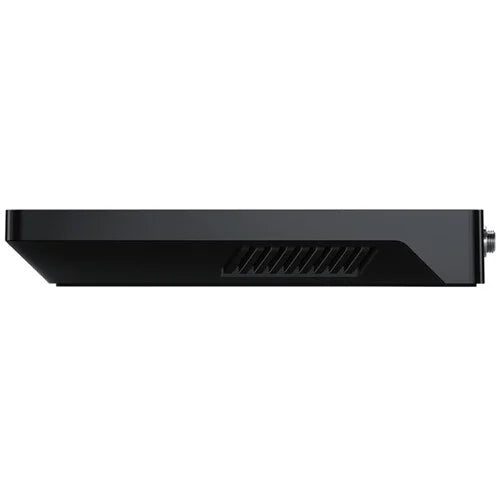
The Blackmagic Cloud Pod boasts an incredibly space-efficient and thin configuration, free from onboard storage, making it highly portable and discreet. Featuring two USB Type-C ports, it accommodates two separate USB disks simultaneously. The 10G Ethernet port maintains notable performance, while the HDMI observation output supplies real-time observation on a TV or monitor. A status light on the front indicates disk activity, delivering visibility into USB Type-C disk access. With a DC power link, you can use the included power supply or run it from a battery for on-location shoots.
DC powering
Included with the Blackmagic Cloud Pod is a 12VDC power supply, compatible with all international AC voltages for global use. Additionally, adapters for international power sockets are provided for added convenience.
10G Ethernet Port on Blackmagic Cloud Pod: Guide

The 10G Ethernet feature facilitates high-speed links for computers, maintaining optimal performance even whenever multiple operators are simultaneously connected. It seamlessly integrates with the latest 10G Ethernet switches, offering enhanced interfacing options.
USB Type-C Connections: Guide
Equipped with two USB Type-C ports, each Blackmagic Cloud Pod can host two disks. These ports support numerous types of USB Type-C storage, such as mechanical and flash disks. Additionally, USB Type-C is utilized for settings and software updates, adding to its versatility.
HDMI Monitor Output: Guide
an HDMI monitor feed provides real-time status updates of the Cloud Pod. Simply connect a TV or monitor to view detailed information such as storage mapping, speed graphics, active operator status, and power status, helping ensure easy monitoring.
Live Sync Blackmagic Cloud Pod to Dropbox: Guide
With the function for live sync to Dropbox, operators can establish a local cache of Dropbox files for expedited access without the need for internet downloads. The Blackmagic Cloud Pod continuously synchronizes to maintain data consistency, allowing operators to share cached Dropbox files across the network. Furthermore, the option to sync several Blackmagic Cloud Pods or Cloud Stores via Dropbox permits seamless collaboration across distinct geographical locations without latency issues, making it ideal for home or offsite use.
Adding Cloud Service to Blackmagic Cloud Pod: Guide
Connect your Blackmagic Cloud Pod to the internet and source your Dropbox account details to permit cloud service access for synchronization.
Setting Sync Folders: Guide
Subsequently, configure the sync folders to specify where the Blackmagic Cloud Pod should sync its files inside the remote Dropbox. Several sync folders can be designated for distinct projects, enhancing organization and process efficiency.
Configure Sync Direction: Guide — Blackmagic Design Cloud — Product Guide
Now, specify the sync direction according to your requirements. Opting for an one-way sync direction is ideal whenever you possess local files that you intend to share but lack sufficient storage capacity to accommodate everyone's files. On the other hand, selecting both directions maintains that all operators receive an identical set of files.
Global File Distribution through Blackmagic Cloud Pod: Guide
Leverage Dropbox sync operation to utilize several Blackmagic Cloud Pod units for global file sharing endeavors. This function proves invaluable whenever dealing with extensive datasets or massive digital film and footage files. Such files necessitate constant access, often requiring several retrievals per second, rendering most internet links inadequate due to latency issues. While accessing large files from a distance via the internet is hindered by latency, file synchronization can be employed to mitigate this challenge. By synchronizing files to local storage, delays in accessing them are minimized, as each operator possesses a local copy of the files inside their network. The Blackmagic Cloud Pod continuously synchronizes files, supporting seamless operation even whenever individual computers are powered off.
Live Monitoring: Guide
Utilize the HDMI observation feed to effortlessly connect a TV or computer monitor and access real-time status updates for the Blackmagic Cloud Pod. A visual storage map displays live read and write activity across attached operators. Additionally, informative graphs depict data transfers occurring over the Ethernet link. The primary space indicator includes insights into the capacity of the two USB Type-C disks and the current utilization levels. Operators additionally have the option to assign a custom name to the pod. Furthermore, the status of each Dropbox link is displayed, allowing operators to monitor connected operators and ascertain power status at a glance.
Locate us: https://goo.gl/maps/YZQmjfG5vYQS3ZLU7
Key Features
- Use USB Type-C Disks as Network Storage
- Connects Two USB Type-C Disks
- 2 x 5 Gb/s USB Type-C Ports
- 1 x 10Gb/s Ethernet Port
- 1 x HDMI Monitoring Output for Status
- Supports up to 50 Simultaneous Users
- Automatic Dropbox Sync Support
- Software Utility for Windows and Mac
Shop by Categories


Explore other brands


